
BETA
Sign in to save favorites, sync across menus, and manage venue onboarding.
BETA
 519 Restaurant & Bar
 Abraham's Grill Hut
 Annies Restaurant
 Ashoka Dhaba
 Avala Restaurant Bar Lounge
 Bambooshi
 BBQ Junction
 Benny's BBQ
 Bess Cup
 Blackstone Grill
 Brgrs n Wngs
 Bukhara
 Burger King
 Buzz Bar
 Chaits Bar
 Chemis Cream
 Chhai Thai
 Chuck E. Cheese
 Church's Chicken
 Cinnabon
 Domino's Pizza
 Fuze Restaurant
 Gifted Hands Sushi
 Gio's Soup & Deli Chaguanas
 Golden Bell
 Häagen-Dazs
 Hakka Express
 Hakka Restaurant
 Happy Farms
 Hassan Gyros
 Hosein's Roti Shop
 Huntet
 Hyatt Sushi
 Ibiza
Ibiza iSeafood
 Island Beer Chill and Grill
 Jaxx International Grill
 Jenny's on the Boulevard
 Joe's Pizza
 Kaizan Sushi
 Kam Wah
 Krave Restaurant
 Lemon Pepper
 Little Caesars
 MammaMia
 Mario's Pizza
 Merengue Restaurant
 Mini Bar
 Monty
Monty More Vino
 Mr Rango
 Naafa Pizza
 Naked Cafe
 Naked Valpark
 Nicks
Nicks Noodle Bowl
 Nube Nueve
 Offside Restaurant
 Ohana
Ohana Olympus Sky Bar and Lounge
 OMG Sushi
 Palki Restaurant
 Papa John's
 Paprika Bistro
 Passage to Asia Restaurant & Catering
 Penthouse Restaurant & Bar
 Pita Pit
 Pizza Boys
 Pizzo Pizza
 Popeyes
 Premium Sear Steakhouse
 Rasam Restaurant
 Red Chilli
 Rituals Coffee House
 Rizzoni's Ristorante Italiano
 Sakura Arts
 Samurai Restaurant
 Sip on the Ave
 SmoQed
 Sombat
 Starbucks
 Sticky Wings
 Subway
 Sum Wok
 Swan Restaurant
 Tempo Nightclub
 Texas de Brazil Movietowne
 TGI Fridays
 The Alley at East Gates
 The Bite Size Station
 The Deck
 The Lazy Lizard
 The New Dim Sum King
 Tiny Tavern
 Tipsy Ibis
 Tommy's Brewing Company
 Trini Hot Chicken
 TT Lunch Kit Catering
 UpRise
 Wendy's
 Whipped
 Wing it
 Wing it Food Cart
 Woodford Cafe
 Yardy Boyz Jerkhouse
 Yummy Hot Chicken
 Zumi Sushi & More
Step 1 of 4
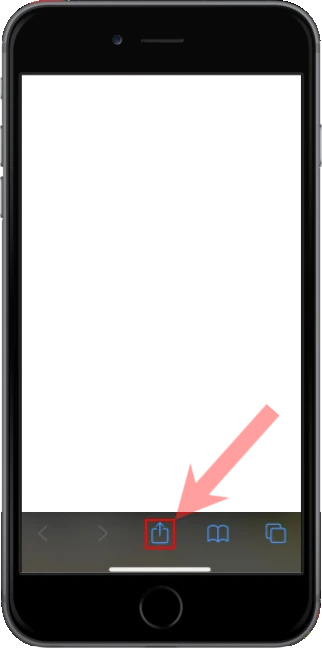
Open this site in Safari (not Chrome or Instagram). Tap the Share button — a square with an arrow pointing up — in the toolbar at the bottom of the screen.