

Loading...

BETA

For restaurants, bars & hospitality brands

Pricing

Plans from a free hub listing to full marketing tiers—built for Trinidad & Tobago restaurants.

  • Free listing

    TT$0 / 2 mo

    Active free term is Free verified. When it expires in Odoo, the plan becomes Free unverified until you renew.

    • Free verified: WhatsApp ordering, branded pin, ordering unlocked, menu notifications
    • Free unverified: TTMS menu app, unbranded pin, menu/items in search, ordering locked, directions, social & functional links
    • Renew from Account at TT$0 to restore verified for another 2 months
    Claim free listing
  • Tier 1

    TT$2,400 / 4 mo

    Same Tier 1 features on a 4-month term.

    • Everything in Free verified
    • Access to analytics
    • Access to Connect Loyverse
    • Social media & functional links
    Start Tier 1 (4 mo)
  • Tier 2

    TT$12,000 / yr

    Featured placement on the hub—plus Tier 1.

    • Everything in Tier 1
    • Featured placement
    Start Tier 2

Prices are in TT dollars (TTD). All transactions are charged in TTD. Already listed? Upgrade or renew from Account. Need help—contact us or create an account to begin onboarding.

Transform your venue’s digital presence with TTMenus. Reach diners on search, maps, and the hub—menus, specials, and hours in one place.

Why choose TTMenus?

Maximum visibility

Get discovered by customers looking for menus, cuisines, and areas across Trinidad & Tobago.

Cost-effective vs print

Fewer costly reprints; update prices and specials digitally when you’re ready.

Mobile-first menus

Layouts are built for phones and tablets so diners get a straightforward browse experience.

Fast updates

Change items, tiers, or promotions without a full redesign cycle—we help you publish.


Paid tiers and deliverables are confirmed per contract; feature flags can vary by client.
Add to Home Screen

Step 1 of 4

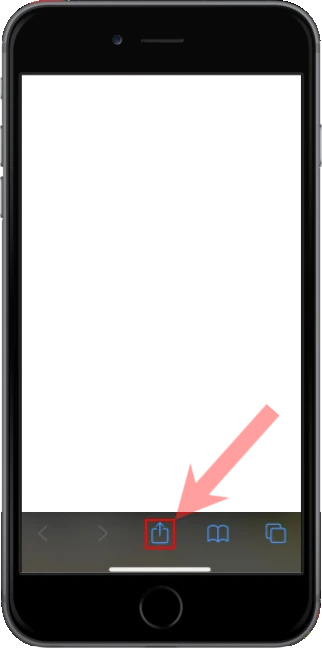
Tap Share in Safari

Open this site in Safari (not Chrome or Instagram). Tap the Share button — a square with an arrow pointing up — in the toolbar at the bottom of the screen.

Safari toolbar with the Share button at the bottom of the screen

Step 2 of 4

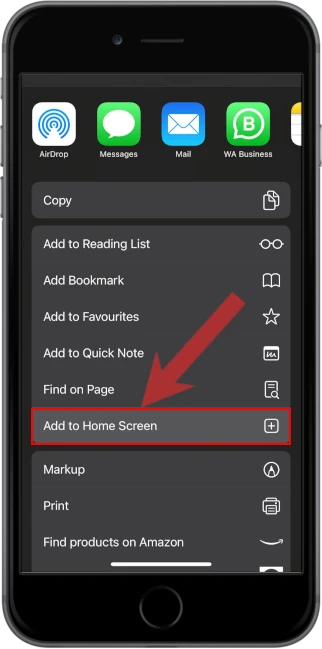
Tap Add to Home Screen

In the share sheet, scroll if needed, then tap Add to Home Screen. It is below Find on Page.

iOS share sheet with Add to Home Screen

Step 3 of 4

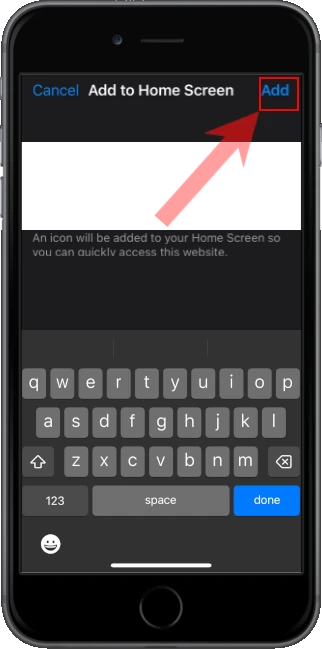
Tap Add

Check the name, then tap Add in the top right. iOS puts the icon on your Home Screen.

Add to Home Screen confirmation with Add in the corner

Step 4 of 4

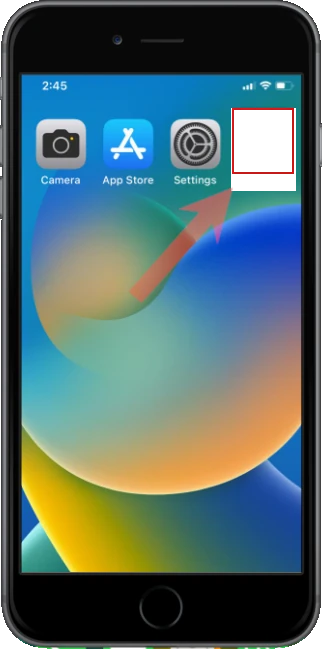
Open it from the Home Screen

Leave Safari and tap the new icon like any other app. Alerts and full-screen mode only work from that icon.

Home Screen with the installed app icon